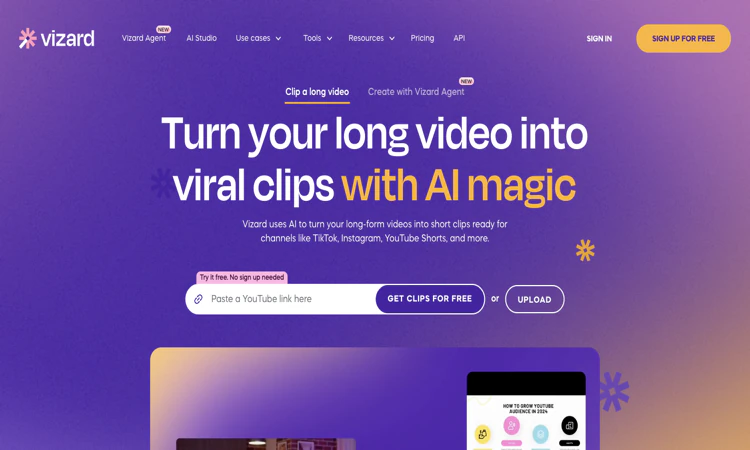
Vizard AI is an AI video clipping and editing service for repurposing longer recordings.
We are not the official developer of Vizard AI. This page helps users find, understand, and use the product.
Vizard AI turns existing recordings into shorter videos for social distribution. Its public homepage starts with a video link or upload, then describes transcription, automatic highlight selection, reframing, editing, and publishing. Vizard AI combines AI clipping with transcript-based editing, so a user can trim footage by editing the associated text rather than working only on a timeline. The website also lists caption translation, brand templates, link sharing, and a shared team workspace. Vizard AI is particularly relevant when the useful material already exists inside an interview, course, or webinar. Its output is a set of proposed clips, which still need contextual and editorial checks. A short segment can be fluent while omitting the qualification that made the original statement accurate. This guide checked public pages and plan information; it did not upload a recording or benchmark the clipping quality.
A team needs to know who supplies the source, who reviews the result, and what the next person receives. This edition treats the product as one stage in that collaborative handoff.
For Vizard AI, prepare an authorized podcast, webinar, interview, or lesson with intelligible speech. The target deliverable is a self-contained social clip with corrected captions and an appropriate vertical crop. Use this as an acceptance condition rather than assuming that every completed draft or preview is ready for its final audience.
Before calling a Vizard AI project complete, check names, sentence boundaries, speaker identity, face framing, and whether the clip makes sense without the full recording. Preserve the original material so a correction can be traced to the source. Keep a copy of the accepted deliverable through the available official workflow, especially when storage or access is limited.
Before a team adopts Vizard AI, agree on the source owner and the reviewer. The input is an authorized podcast, webinar, interview, or lesson with intelligible speech; the accepted output is a self-contained social clip with corrected captions and an appropriate vertical crop. Separate permission to create a draft from permission to publish, share externally, or approve a purchase. This gives each stage a clear owner.
The Vizard AI handoff should contain the source recording, selected timestamps, corrected transcript, caption style, and approved export. A reviewer should be able to identify the intended outcome and the remaining uncertainty without replaying the entire production process. Include any plan-dependent restriction that affects the next person, such as access, export availability, storage, or a separate delivery condition.
Use one small Vizard AI project to test that handoff before expanding team access. Ask the receiving person to locate the source, explain the decision, and continue from the delivered material. If that requires missing context, improve the brief or checklist first. A collaboration feature is valuable only when the team can understand and use the work it makes available.
Vizard AI identifies Vizard, Corp. in its privacy policy. Uploading a recording sends its visual content, speech, and any personal information inside it to an online processing service. A private workspace label is useful product information, but it is not a substitute for reviewing retention terms and deciding whether a particular client call may be uploaded. Vizard AI also offers direct publishing and social connections; review the account authorization separately from the basic editing trial. Use a recording that is already cleared for this purpose.
For Vizard AI, review the current policies before providing sensitive material. This public-page check is not a security audit.
Vizard AI connects to the practical demand for turning a single webinar or podcast into several short posts. Text-based editing and automatic vertical framing give users an easy way to understand its workflow. The homepage contains creator testimonials and usage claims; this guide does not treat those as measured results for a new user. No single independently verified source of a current viral trend was identified during this review.
The Vizard AI public homepage was reachable on 2026-10-22; individual account features and jobs were not tested.
Compare Vizard AI alternatives against the required input and deliverable; capabilities and commercial terms differ.
The official Vizard AI website is https://vizard.ai/. Use the official navigation to reach account, pricing, downloads, and support rather than relying on a similarly named search result.
The Vizard AI Free plan lists 60 credits per month, 720p exports, and three-day video storage. The comparison table lists a 60-minute upload-length limit and a 1 GB upload-size limit for that tier. Creator adds higher-quality exports and watermark removal; Business adds a shared workspace and branding features. Vizard AI states that one credit corresponds to one minute of video on its paid-plan cards. Annual discounts and additional editor-seat charges need to be included when comparing the checkout total.
A no-sign-up trial entry is advertised; accounts support saved workspaces and subscription features.
The official public attribution for Vizard AI is Vizard, Corp.
Yes: the official Vizard AI public website was accessible when checked on 2026-10-22. No account creation, customer upload, paid output, or physical order was tested.
Vizard AI: Provide the source recording, selected timestamps, corrected transcript, caption style, and approved export. Add the acceptance condition and the remaining review questions so the receiving person can make a concrete decision without reconstructing the full project.
Automatic highlights need context checks; noisy speech can damage transcription, and free projects have resolution, upload, and storage restrictions. A practical Vizard AI evaluation should include one example that exposes the limitation most relevant to your project. Check the current plan or item details again before a subscription, purchase, integration, or external handoff.
Start with Vizard AI and use a short interview excerpt with one clearly explained answer and a known spelling list. Keep the source, acceptance condition, and final decision together so the next step is based on an observed result.
Official references checked or linked from the reviewed website: Official website; Official pricing; Privacy policy.
Last checked: 2026-10-22. Verify current Vizard AI plan details before a purchase or integration.
Flying Roadster AI Video Generator takes a car photo on a cinematic journey, with optional portrait, vertical or widescreen framing, and downloadable results.

Project Moon Life is a free browser journey through a changing City, where each randomized life follows a different route shaped by your choices.
Flower Wand Garden is a free, browser-based interactive camera experience that turns your fingertip into a virtual magic wand.
Seven free football mini-games in one browser hub — career sims, legend guessing, squad building, and a daily challenge that is identical for everyone.
Get an instant, fully in-browser PSL rating from one photo — nothing uploads anywhere, and you receive a score, tier, breakdown, and share-ready card.
Recreate the hidden band of a world flag with HSB sliders while the preview updates live — five rounds a game, scored by perceptual color distance.